Inline JavaScript in HTML: Don’t do it, unless you like really, really bad code
Posted on June 24th, 2020
Modern code has moved away from manual coding and into optimized structures that provide a framework for effective code creation processes. Especially, for front end code.
Writing inline JavaScript is one of the many things you learn when you want to tinker with how HTML behaves. However, writing JavaScript straight into your HTML pages is not considered a best practice. In fact, it’s considered very 90s by today’s coding standards.
Just because you can do it doesn’t mean that you should.
Why should you not use inline Javascript in HTML?
Because JavaScript was created in a different era. However, it’s evolved beyond its original envisioned scope, permeating through into places and spaces like mobile devices, tv screens, and wearable gadgets.
In the world of JavaScript, the web, and its relationship with DOM manipulation, we’ve come far with architectural setups, version releases, and away from the manual and traditional way of writing inline JavaScript.

What inline JavaScript looks like
But before we dive into the alternatives of writing inline JavaScript, here’s what it looks like.
You have an HTML page — with the base structure looking something like this:
<!DOCTYPE>
<html>
<head></head>
<body></body>
</html>
When you want to add an external JavaScript sheet, you use the <script src=""> tag, with a reference to where you file is in between the ” ” .
A browser will read your HTML document from top to bottom, pulling and loading your JavaScript file at the location and initialized the script accordingly. This means that if you put your JavaScript call at the very top and within the head area, your script will execute immediately, right before any of the DOM is loaded.
For some external scripts, it requires all the DOM elements to be loaded first, and hence the recommendation is to put the script src call right at the bottom.
When you write inline JavaScript, what you’re doing is similar to what the script src tag is doing, except the code is right inside the HTML file, rather than having to be called externally.
To do this, it looks something like this:
<script>
//your JavaScript code here
</script>
When you put your JavaScript code inside <script> tags, it lets the browser know that the code in between is to be interpreted as JavaScript. If you don’t do this, the code will be treated and printed as plain text.
The pros, the cons, and the horror stories of inline JS
Inline scripts are often seen in spaces such as Google Analytics tracking codes, site verifications and ownerships for webmaster tools, and initializing and setting parameters of external scripts.
Here’s one example:
<!DOCTYPE html>
<html>
<head>
    <title>Inline JavaScript</title>
    <meta charset="utf-8">
    <meta name="viewport"
          content="width=device-width, initial-scale=1">
    <link rel="stylesheet"
          href=
"https://maxcdn.bootstrapcdn.com/bootstrap/4.3.1/css/bootstrap.min.css">
</head>
<body>
    <div class="container">
        <h1 style="text-align:center;color:green;">
          GeeksforGeeks
      </h1>
        <form>
            <div class="form-group">
                <label for="">Enter Your Name:</label>
                <input id="name"
                       class="form-control"
                       type="text"
                       placeholder="Input Your Name Here">
            </div>
            <div class="form-group">
                <button id="btn-alert"
                        class="btn btn-success btn-lg float-right"
                        type="submit">
                     Submit
                </button>
            </div>
        </form>
    </div>
    <script>
        var user_name = document.getElementById("name");
        document.getElementById("btn-alert").addEventListener("click", function(){
            var value=user_name.value.trim();
            if(!value)
                alert("Name Cannot be empty!");
            else
                alert("Hello, " + value + "!nGreetings.");
        });
    </script>
</body>
</html>
While these implementations are innocent enough, they do become cumbersome to maintain over time if there are multiple pages involved. This becomes especially hard when the code is passed through multiple developers.
The code can grow into a large decentralized mammoth with potential for conflicts, and a unified approach to doing things.
JavaScript essentially has two main abilities — the first being the ability to call and push data over to a server, and the second being the ability to manipulate the DOM based on actions, reactions, and inputs.
When you start doing these things inline, it can cause page stability issues, in addition to duplicate code and potential long term headaches for the developers involved due to the manual nature of inline JavaScript.
Do you stay updated with the latest advancements and trends in software development?
It’s essential to remain informed about new technologies and practices to excel in this constantly evolving industry. Learn how you can leverage AI to optimize your software engineering in 2023.

What Angular does with JavaScript
Angular is a JavaScript framework that turns coding into a highly organized and architectural packaged piece of code. On the surface, it’s single paged. This means that everything is rendered via the compiled JavaScript that calls your server for portions of your DOM and stitches them together to form a complete view.
This is useful for handling data, creating a level of persistence, reducing the amount of code required, and as a side effect, reduce the potential of duplicated code. While duplicated code is not completely eliminated and depends on how the developer structures the code, it’s a much better approach than inline JavaScript.
However, this can cause issues for things like Google analytics, which works through an inline approach and requires the page to refresh in order to push over data for tracking.
When you’ve got a single page application, your root index.html never had refreshes, unless you’ve got a special setup for it to happen with some enforced persistence for the app’s general data.
For external scripts to work properly, you can either find a module that supports it in the npm open-source space, or import the script into your Angular app and use the life cycle hooks to push or pull relevant data to the right places.
What React does with JavaScript
Another popular JavaScript incarnation is React. This front end library is a popular alternative to Angular. While Angular has a TypeScript layer between the JavaScript and the code you create, React uses JSX, which is a syntax extension of JavaScript.
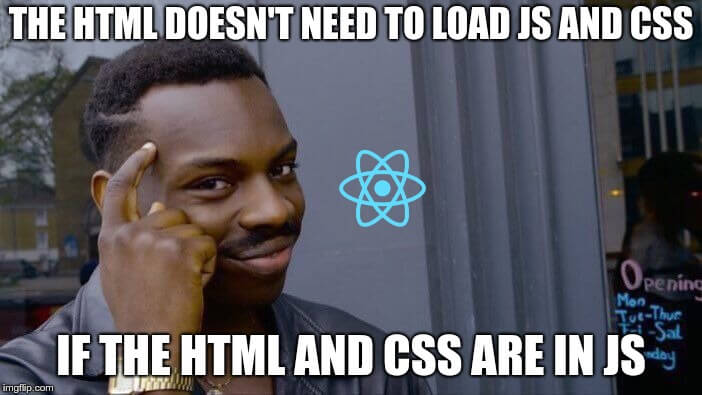
What happens here is that you are essentially putting JavaScript and DOM elements in one file, for it to be rendered by React.
Like Angular, React can also be configured into a single page application (SPA), or ported over as widgets that sits inside other DOM-based applications.
However, unlike Angular, where there is a clear separation of code types (HTML, CSS and JavaScript), React inverses the concept of separation of concerns by putting everything you need into the same space. So rather than having to bounce between multiple files, React’s JSX returns everything back into it’s original HTML and JavaScript relationship days and makes the code inline once again.
However, rather than marking out your scripts in between script tags, you are marking out your HTML instead. With React, your JavaScript becomes the center of attention and your HTML becomes the ‘inline’ equivalent element.
How JavaScript fits into everything
When it comes to the web, DOM manipulation, and creating user experiences, JavaScript is the most widely supported language to do so.
However, the scripting language has grown up since it’s original days of writing JavaScript code directly in the HTML. This in part, is because how we use the web has also dramatically changed.
While inline scripts can come in useful for backend based renderings of HTML pages, it’s still not widely recommended for code reliability, readability, and cleanliness reasons. There are better ways to import, implement, and use JavaScript.
As we move into an API based architecture for application stacks, the demarcation between front-end and backend creates clear boundaries between the types of architectures required to create a robust piece of software that are able to effectively integrate with one another.
If you are using a framework or library like Angular or React, using the traditional <script> tag to place inline JavaScript snippets will often lead to breakages in your applications. Why? Because it’s violating the preset rules that make the framework or library special. It’s best to keep to the rules of your framework or library so that you don’t violate their state management flows.
Why? Because state management is the thing that keeps your app’s data intact. When you start using inline JavaScript that sits outside the flow, you risk creating leaks and introduce avoidable weaknesses to your app.
While it all boils down to JavaScript, the point of using a framework or library is to help you structure and organize your code in a way that allows you to manage the flow of data and any transient persistence on the page, or part of the page. When you use inline JavaScript in a way that’s not endorsed by the architectural framework or library, you increase the chances of it breaking when things are required to change.
Final thoughts
Inline JavaScript is not evil — but there’s a time and place for everything. While it was popular in the days before Angular and React rose to the peaks of its current adoption, the usage of pure inline JavaScript is on the decline.
Just because you can do it and in relative ease, it doesn’t mean that you should.
Using inline JavaScript might be justifiable for small snippets that isn’t expected to be repeated elsewhere, or are incorporated into parts of the header — but even then, it is not advisable unless it is part of an initialization process to make your application work.
PyCharm vs. Visual Studio Code for Python development
Posted on June 4th, 2020
Python is one of the most popular programming languages in the world in 2020 and many developers call it home. As such, it has a broad selection of tools, code editing apps and IDEs to match the needs of different Python developers and project types.
The list of code editing tools is long, but the top two contestants for the crown, JetBrains’ PyCharm and Microsoft’s Visual Studio code, are by far the most popular homes for Python developers. Where should you be living in 2020 – VS Code or PyCharm?
For an experienced Python developer (or any language for that matter), swapping IDEs is akin to moving to a new home in a different country. Even if you speak the local language, there are differences in things like currency, as well as local customs, and laws you will need to learn. Not to mention your new house, where you may even find yourself sleepily looking for the toilet (for God knows what time) in the middle of the night. At least for the first few weeks.
Is it worth it? Perhaps you will discover that migrating to a different state makes your life objectively better. Once you remember where the bathroom is, of course. Alternatively, you may find yourself hurrying back to your place of birth, kissing the proverbial ground as soon as you land.
Few dare to take the leap, pack their code and move to a new IDE or code editing software. For many, there’s no place like home even if the alternative promises to save them time and headaches. But loyalties aside, it’s always a good idea to take a peek over the borders.
How to choose a Python IDE / Code Editor
It’s worth noting that this article is not a “conversion piece” for neither PyCharm nor VSCode. We’re not recommending you choose one over the other (especially since you can make use of TabNine), but rather than you choose correctly for your needs.
Whether you currently use Visual Studio Code or Jetbrains’ PyCharm for Python development, this article aims to give you a better understanding of the difference, and uncover how each may contribute to your productivity.
Before we dive into the advantages and disadvantages of PyCharm and VSCode for Python development, it’s worth taking a moment to organize your criteria for selection. Among the topics to consider are license costs (if you have no budget) and system requirements (if your lack of budget is evident in your hardware setup).

IDE vs Code Editor
We’ve used the terms IDE and code editor in this article rather interchangeably. However, they’re not the same.
Jetbrains’ PyCharm is a full-featured Integrated Development Environment (IDE) for Python development. As such, it includes everything you need in order to code, build, test, and debug Python applications.
In addition to a code editor, an IDE such as PyCharm typically includes a compiler and/or interpreter, a debugger and code profiler, version control integration, and plugin support. All available on-install out of the box.
This does mean, however, that PyCharm is a heavy beast with high system demands along with advanced capabilities aimed specifically at professional Python developers.
VS code is a lightweight code editor with basic features like syntax highlighting and code formatting included out of the box. VSCode can be customized heavily with extensions to do pretty much anything and everything with most commonly used programming languages and frameworks.
This makes VSCode perfect for code polyglots who develop in multiple languages. But it also means you will spend more time customizing it to your Python coding needs with extensions that will (hopefully) not clash with one another.
Intellij PyCharm for Python Development
PyCharm is one of the highest rated Python IDEs today, and it has earned its spot at the top with its suite of productivity tools and out-of-the-box features. But not all PyCharms are the same, and different licenses offer different degrees of functionality.
There are currently three types of licenses for PyCharm. The first is the Apache-licensed Pycharm community edition, aimed mostly at data scientists. It is open sourced and free, and offers features like syntax highlighting and some autocompletion. The second is the Education edition, offered for free to students and teachers.

It too offers a limited feature-set and is intended for learning and not so much development of software products. The third type of license, and the version we refer to in this article is the Professional edition of PyCharm, that carries a hefty price tag starting between $ 199 and $ 159 for an annual subscription for businesses.
The full and paid version of PyCharm offers advanced features and capabilities geared toward streamlining all aspects of professional Python software development. This includes full built-in database management (like Oracle and MySQL) and support for multiple popular frameworks (like Django, Flask and others) that are not supported in the free versions.
What it doesn’t include is extensibility to other languages and frameworks. So if you need to visit the land of COBOL (for some reason) or venture into the woods of .NET – you will need to upgrade to Intellij IDEA or install an additional IDE for that language.
Pros
- All-in-one IDE out-of-the-box – write, edit, debug, compile, execute and deploy from the same window
- Created specifically for Python developers
- Django support (including code completion and resolution in views.py and urls.py files, code inspection tools for Django ORM, and the ability to debug Django templates)
- Professional support by JetBrains
- Compatible with over 3,000 available Intellij plugins
Cons
- Price of professional edition (and lack of features in free editions)
- Requires some configuration for first-time users and novices
- Supports a limited number of languages and technologies in addition to Python
- System requirements and performance – consumes up to 1GB of memory a minute while idle
Microsoft Visual Studio Code for Python Development
Visual Studio Code is a lightweight solution that can be expanded, extended and modified through plugins and extensions. A kind of Lego board upon which you can construct the development environment you want and need.
Being a modular solution, VSCode demands that you download and install extensions to compile, debug, lint and deploy code. It may sound like a bit of a hassle, but you can do that for pretty much any popular language or framework out-there. Need to code in Python? It just so happens that the Python support extension is the most downloaded plugin in the Visual Studio Code Marketplace. Need to write some C++ and don’t want to install yet another code editor? Then you should download the second most popular extension for VSCode – C/C++ support.
The VSCode community and Microsoft themselves are not blind to the rising popularity of VSCode with Python developers. In the recently published update to the Python extension for VSCode, Microsoft addressed 42 issues, and added the ability to browse for or enter an interpreter path on selection.
Pros
- Growing community support
- Free and open source
- Lightweight and low on system resource demands
- Support for most popular languages and frameworks through extensions
- Powerful and customizable code management
- Thousands of extensions to choose from
Cons
- Less suitable for large and complex Python projects and applications
- Demands a great deal of customization and tweaking
- Lacking Django support
- Thousands of extensions to choose from
The choice between PyCharm and Visual Studio is similar to a choice between a fancy cake knife and a Swiss army knife to cut a cake. The first may produce artfully cut and even slices, while the second may not be perfect for cutting a cake, but can do a lot more. And fits nicely in your pocket.