Top 12 Eclipse IDE themes
Posted on November 29th, 2021
As one of the most used IDEs globally, Eclipse is pretty accommodating out of the box. However, it shouldn’t make us lenient when it comes to upgrading our productivity.
Several factors influence our ability to code effectively. From AI-driven code completion assistants to a plethora of useful plugins, one feature that many developers often overlook is the theme they use in the Eclipse editor.
How to change Eclipse color themes
To change your Eclipse IDE’s color and the code you see to a different theme, use the Eclipse Color Theme plugin. First, you need to install it. To install Eclipse Color Theme, go to Help > Install New Software in your top menu bar:

You will get a screen that looks like this:

Next, click on Add. You’ll get another popup that looks like this:

Fill in the form with the following details:
| Name: Eclipse Color Theme Location: http://eclipse-color-theme.github.io/update/ |
Once done, press OK. To install Eclipse Color Theme, select it and press Next. Accept the license when prompted. You might get a security warning, so press OK to proceed.
This will set up everything you need. To change your color theme, go to your top menu bar and select Window > Preference.

On the left sidebar, select General > Appearance > Color Theme. This will take you to the next panel, where all the themes are available. All you have to do now is select the theme you want:

You can also create or import your own custom theme using the Import a theme… button.
Keep up with the evolution of software development
To remain relevant in the constantly changing landscape of software development, it’s essential to stay up-to-date with the latest advancements and trends so you’re equipped with the knowledge and skills to succeed. Learn more about how to utilize AI to optimize your software engineering in 2023.

Top 12 Color Themes for Eclipse
1. Oblivion
Oblivion is a predominantly lime green color theme for Eclipse, with specks of blue and red for highlights. This Eclipse theme and its color application are split between variable types and method-related parameters. Oblivion is a dark coding theme by Roger Dudler and is the most popular color theme on Eclipse, with over 600k downloads.

2. Obsidian
Obsidian is similar to Oblivion with its green predominance. However, Obsidian approaches Eclipse color theming with a softer palette, leering on the pastel side. This makes it not as bright as Oblivion, which can be good if you prefer muted tones.

3. Vibrant Ink
Vibrant Ink is a color theme that balances creating a hierarchy of data types with aesthetically bold schemes. It’s a dark theme with high contrast for maximum focus, with lime green highlights for easy variable scanning.

4. Zenburn
Zenburn is a dark theme with pastel vibes. The usage of greens, blues, and browns is equally balanced to produce a softened IDE. Zenburn is an excellent alternative for your Eclipse IDE if you’re not into stark contrasts in dark themes.

5. NightLion Aptana
When it comes to dark themes, they come in all shades of darkness. NightLion Aptana is a dark theme that’s ported over to Eclipse IDE. The color palette is a series of calming blues that gently transition into green tones.

6. Monokai
Monokai is a trendy theme that developers use on Sublime Text and VS Code. Its availability on Eclipse IDE means that switching context reduces the cognitive load because you’re not required to adjust to a different color scheme mentally.
The palette is optimized for Java, PHP, and HTML, making it a versatile color theme that you can use across different editors.

7. Retta
If you like pumpkin spice, Retta is the color theme for you. Set against a dark black background, the different shades of orange exude a funky fall vibe. Retta is also a fun theme that keeps everything tightly highlighted within the same color spectrum, apart from the seasonal feel. Unlike other themes listed here, the color transition is not as stark. This increases your ability to immerse yourself into the flow state of coding.

8. Inkpot
Inkpot is a pleasant dark blue theme with more than 33k downloads. This color theme is a series of blues and light salmon pink highlights for variable assignments. The colors in this theme are limited to just class, interface, method, methodDeclartion, number, string, operator, and annotations. The palette is tightly centralized and only highlights large blocks rather than every possible variation. Through this, Inkpot can localize information and create groupings through color.

9. Black Pastel
Black Pastel was originally a Vim color theme that was later transferred over to Eclipse IDE. The palette for Black Pastel is a gradient of purples that gently move towards a tinted white on the color spectrum. The color theme evokes a calming vibe and is excellent for those chill coding moments where you become fully immersed in what you’re doing.

10. frontenddev
If you’re using Eclipse IDE for frontend development, then frontenddev is a fantastic theme to check out and use. The choice of highlights emphasizes parts of the code that frontend developers mainly use. The way frontenddev supports HTML also comes in handy when you’re switching between your models, views, and controllers.

11. Dracula
Dracula is a dark theme that’s able to make its way onto almost every available text editor and IDE. Eclipse is no exception when it comes to Dracula’s color theme support.
Made for developers and by a developer, the Dracula color theme considers the need for a cohesive palette that works well with its choice of saturation for each color.

12. Vim dark
Vim is an editor that you either love or hate. Regardless, the color palette for Vim is undeniably funky. It’s predominantly green but configured in a way that feels balanced with its highlights and choice of information to bring to the forefront through color. There’s a vintage feel when using this color theme in Eclipse, which can be fun to work with if you’re into retro themes.

Picking the best theme for productivity
Choosing the suitable color theme for your Eclipse IDE workflow balances aesthetic preferences and the type of code you’re writing. Every project has a predominant kind and style of code required, so the choice of highlights matters.
In addition to color themes, the right plugins for Eclipse IDE can also increase your productivity and help improve your ability to stay in the flow state.
Stay updated and learn how to optimize your software development with Tabnine AI
Tabnine is the AI coding assistant that accelerates and simplifies software development while keeping your code private, secure, and compliant.
Try Tabnine Pro free for 90 days!
[cta_btn url=”https://www.tabnine.com/pricing/landing” label=”Start a free trial”]
Top VS Code themes
Posted on November 22nd, 2021
Visuals are essential for productivity when writing, editing, and debugging code. VS Code has gained popularity among developers, and it’s easy to see why.
According to the 2019 Developers Survey, Visual Studio Code (VS Code) scooped the first position, with 50% of the 87,317 respondents using it. This was a great stride after it was ranked number 13 among popular development tools on Stack Overflow.
VS Code features a lightning-fast source code editor that’s ideal for everyday use. With support for hundreds of different programming languages, including C++, Java, JSON, and Julia, among others, it improves your productivity with bracket matching, box selection, syntax highlighting, auto-indentation, and more.
However, with more than 5,000 themes to choose from, it can be daunting to find the best one. If you’re looking for the top VS Code themes to try out, here’s a variety of stylish themes to choose from, from vibrant and sleek to pizzazz.
You can increase productivity using an AI-powered coding assistant like Tabnine, which offers code snippets based on your coding style. Using Tabnine, you can write code quickly and avoid typos, making the coding process more efficient. Learn more about using AI for software development and try Tabnine Pro free for 90 days!
How to install themes in Visual Studio Code
You can install themes in Visual Studio Code in two main ways. You can either visit the Marketplace and select the theme you want to download or search in the VS Code IDE.
Method 1: Marketplace
Step 1: Visit the Marketplace and select the theme you want to download. In VS Code, select File > Preferences > Color Theme to open the Color Theme picker on your Windows PC. If you’re on macOS, select Code > Preferences > Color Theme.
You can also open the picker using the keyboard shortcut Ctrl + K Ctrl + T.
Step 2: Use the cursor keys to scroll and preview the colors of the theme.
Step 3: Select the theme you want and press Enter.

Method 2: Search in the VS Code IDE
Alternatively, you can install a theme by searching for it in the VS Code IDE. From the Extensions icon on the left side of VSCode, search for the theme and click on Install.
Top dark themes for VS Code
If you don’t want to get sore eyes using a light-themed IDE the whole day, a dark theme is your best option. Although VS Code has a default Dark+ Theme, it might lack your personal taste. You may want a mix of ivory colors and hues while keeping a dark background. Here are the top dark themes for VS Code:
One Dark Pro

One Dark Pro is the most popular and widely downloaded VS Code theme with almost 4 million installs. It’s based on Atom’s default One Dark theme and is best suited for developers who love dark mode themes. It has well-blended color schemes and cool syntax highlight colors that make it visually appealing.
Dracula Official

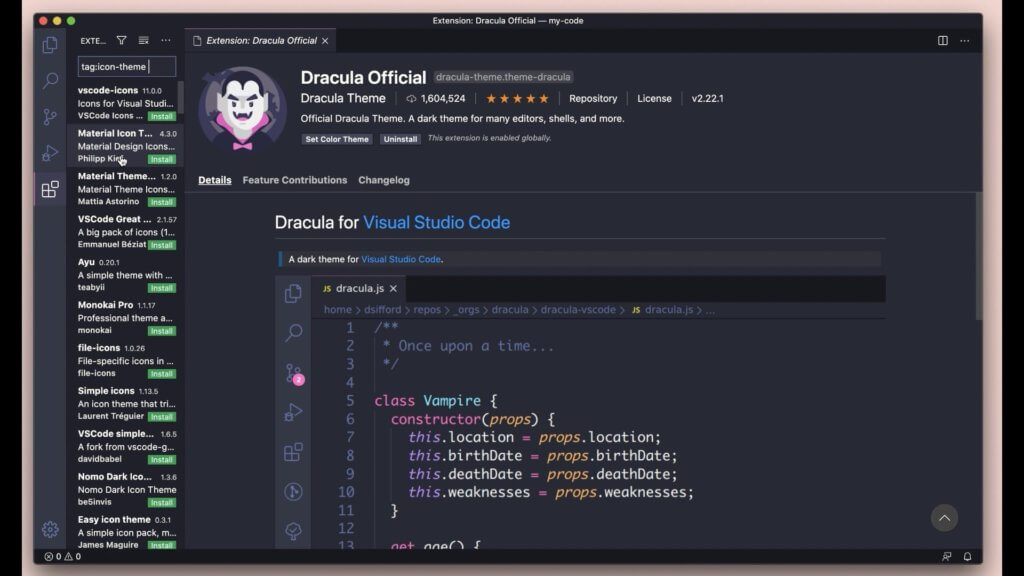
Created by Zeno Rocha, Dracula Official is a dark theme for VS Code and 181+ other apps. It has worldwide downloads of over 2 million and has received a 4.9 average rating from 81 reviewers. It has a designer-friendly dark theme with great color combinations and contrasts to enhance your productivity.
Darcula

If you have used JetBrains IDEs and Android Studio, you have come across the Darcula theme. While it’s easy to confuse Dracula Official with Darcula, the latter offers a painstakingly dark color scheme for 195+ apps, code editors, and terminal emulators, including VS Code. For a unified experience in JetBrains’ IDEs, Darcula is an excellent option.
Synthwave ’84
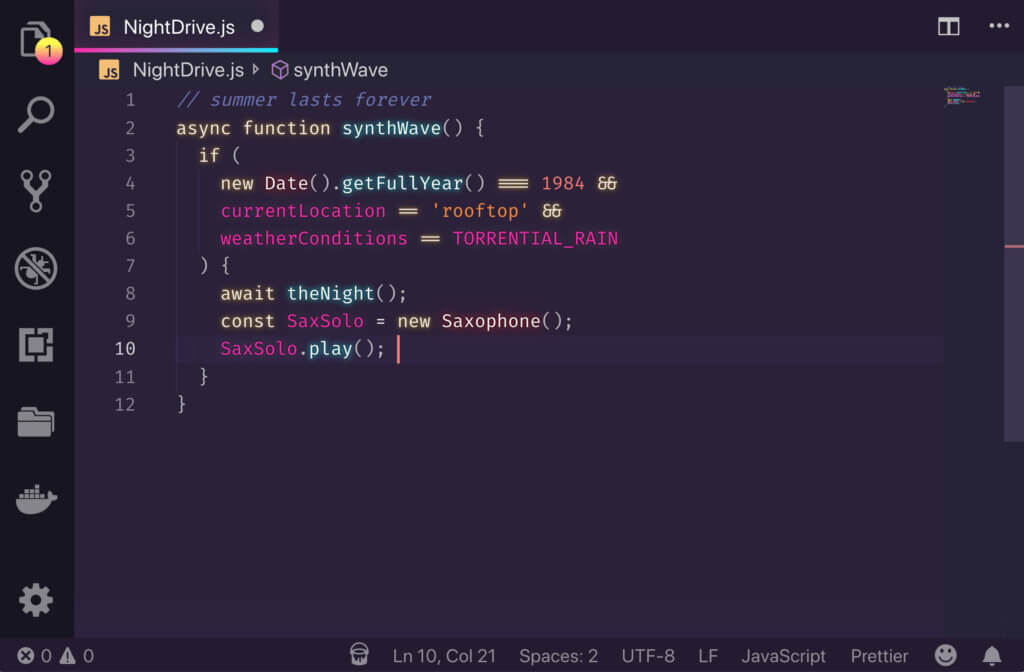
The Synthwave ’84 theme is a simple CSS theme that celebrates ’80s aesthetics in modern web development. It’s influenced by the music and the cover artwork of modern Synthwave brands like Timecop 1893, The Midnight, and FM-84. It lets you experience the ’80s neon dreams glow effect with well-blended colors, making it one of the more elegant and classier themes.
Atom One Dark Theme
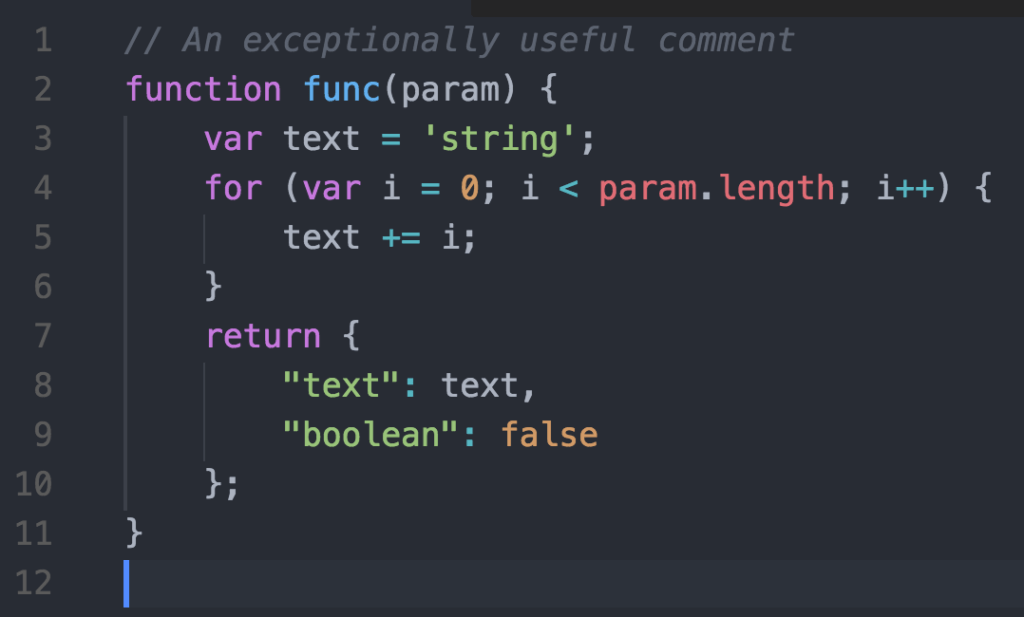
Created by Mahmoud Ali, it served as an inspiration for the One Dark theme and is based on the theme from the Atom IDE. Unlike other dark themes, it has only one variant – dark. It’s an excellent option if you miss Atom but don’t want to return to it. It boasts almost 2 million installs worldwide with a 5/5 rating.
Night Owl
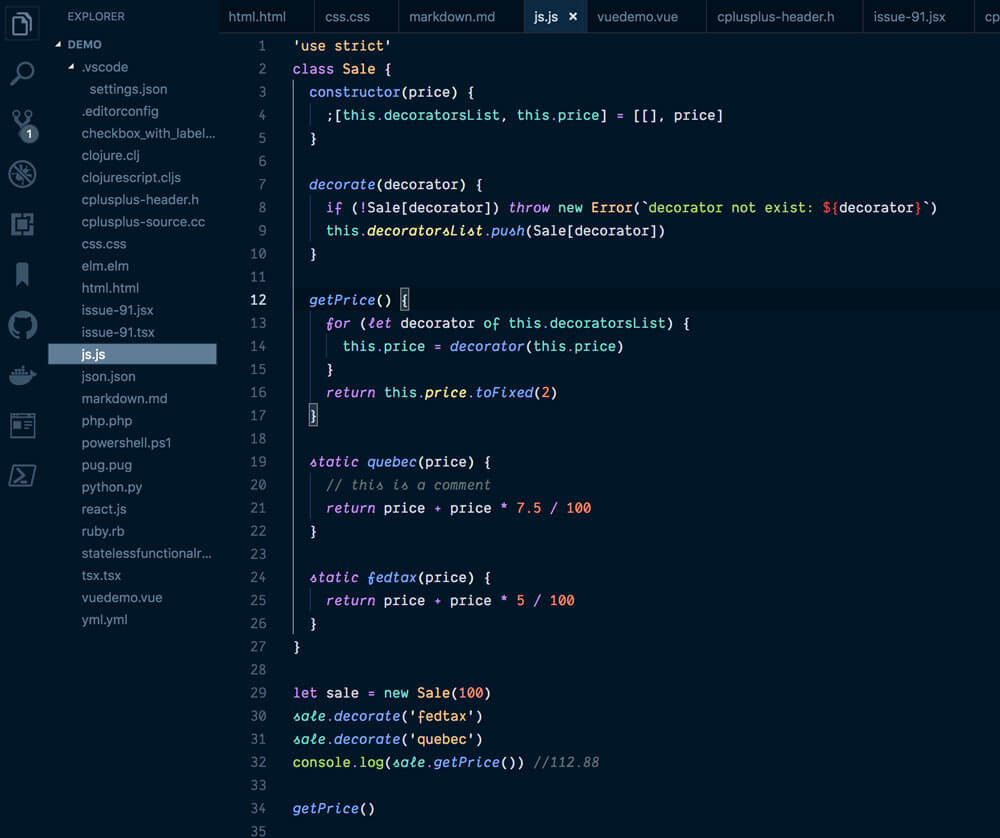
Are you a night owl who likes coding while the rest of the world is asleep? The Night Owl theme will keep you motivated throughout the night. It features a light and dark theme, taking into consideration people with colorblindness and allows for easy viewing in daylight.
Top light themes for VS Code
Light themes are recommended for daylight coding. Since programmers spend most of their daytime coding, they need an elegant light theme to help them code with ease. Here are the top light themes for VS Code:
Quiet Light
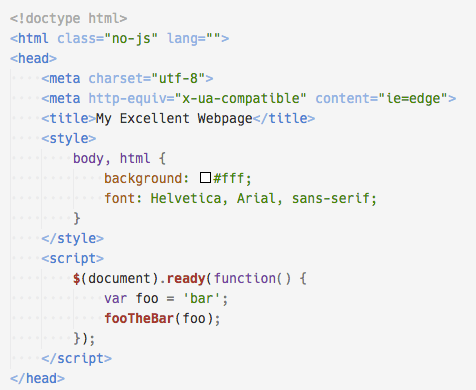
Built first for the Espresso text editor on Mac, Quiet Light is an official port of the Quiet Light Theme. Although VS Code comes with a default Quiet Light theme, this one has more modifications to appeal to your tastes and preferences. It supports several languages, including JavaScript, PHP, HTML, CSS, Python, and more.
Bracket Lights Pro
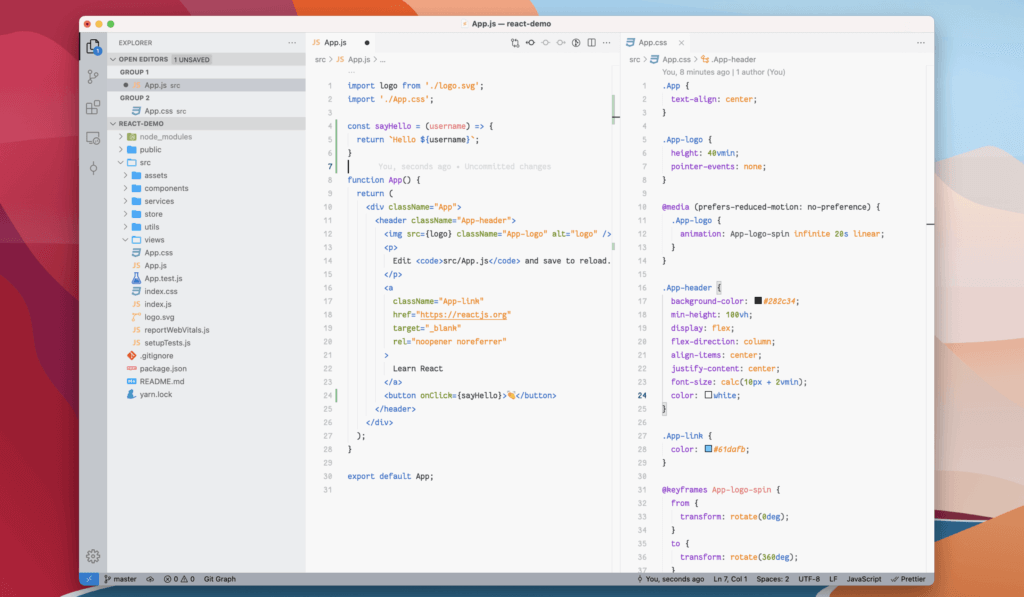
The Bracket Lights Pro theme has an eye-catching theme for its beautiful color palette. It channels Adobe’s Brackets code editor’s light theme to VS Code. Although Adobe ended its support for Brackets in 2021, you’ll love using Bracket Lights Pro for its clean look.
Bluloco Light

If you love a theme with sophistication and a wide range of colors in the palette, you’ll never go wrong with Bluloco Light. Forked initially from One Light Theme, it features a more extensive usage of color consistency and syntax scopes regarding readability, contrast, and aesthetics.
Top theme packages for VS Code
VS Code is arguably one of the best code editors, with a huge array of community-supported extensions. Available across macOS, Windows, and Linux, you can fuel almost all your programming needs regardless of the operating system. Here are the top theme packages for VS Code:
Tokyo Night
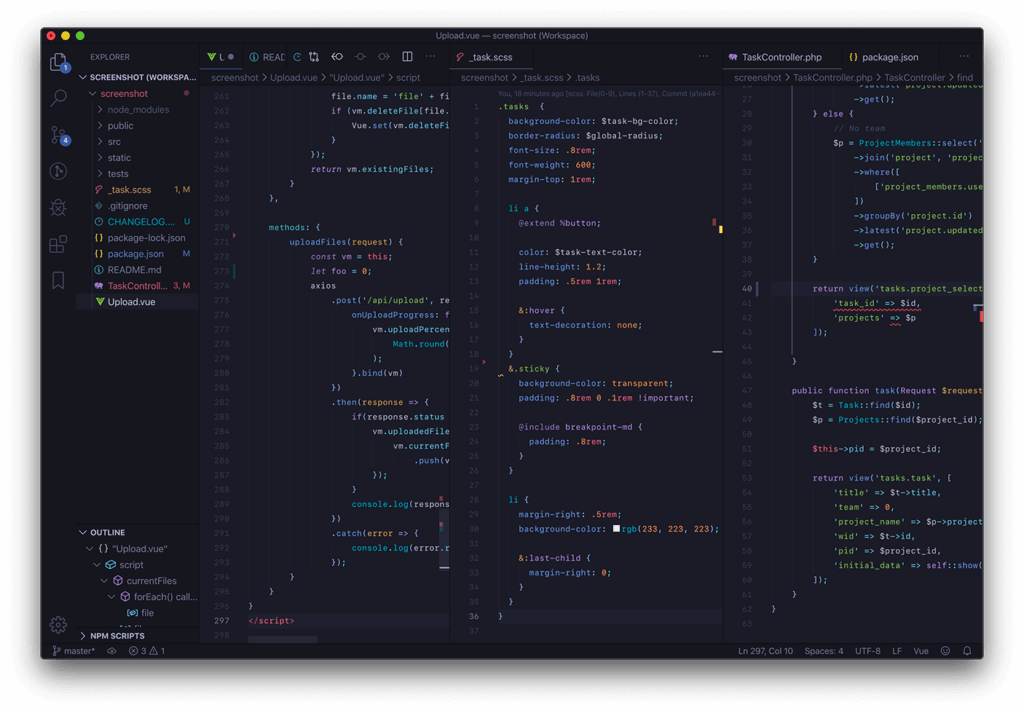
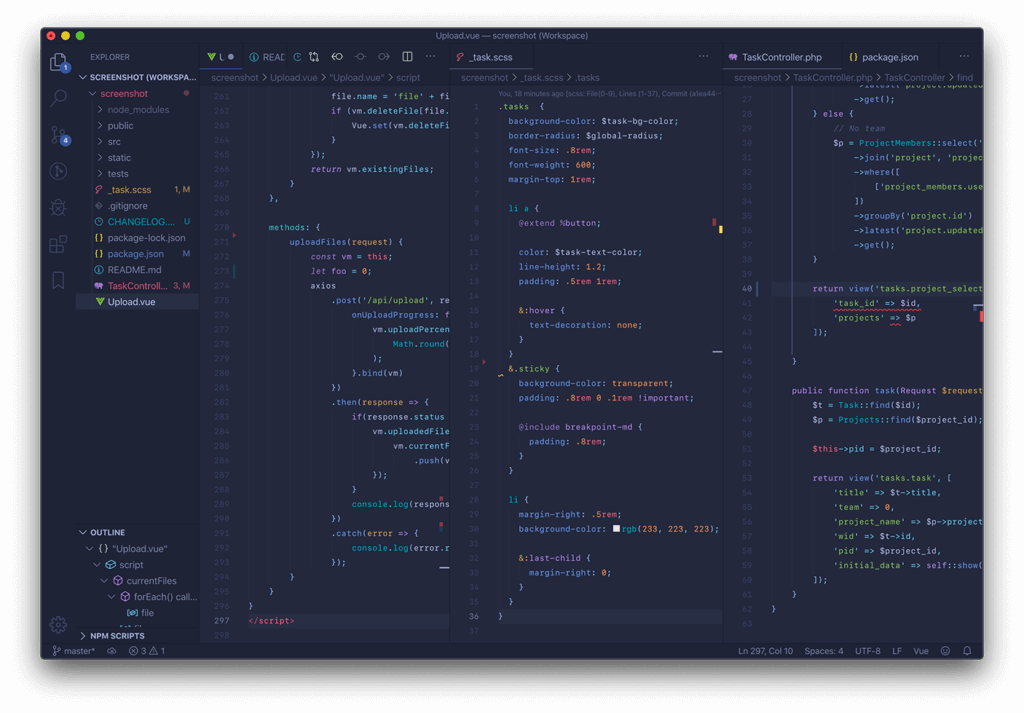
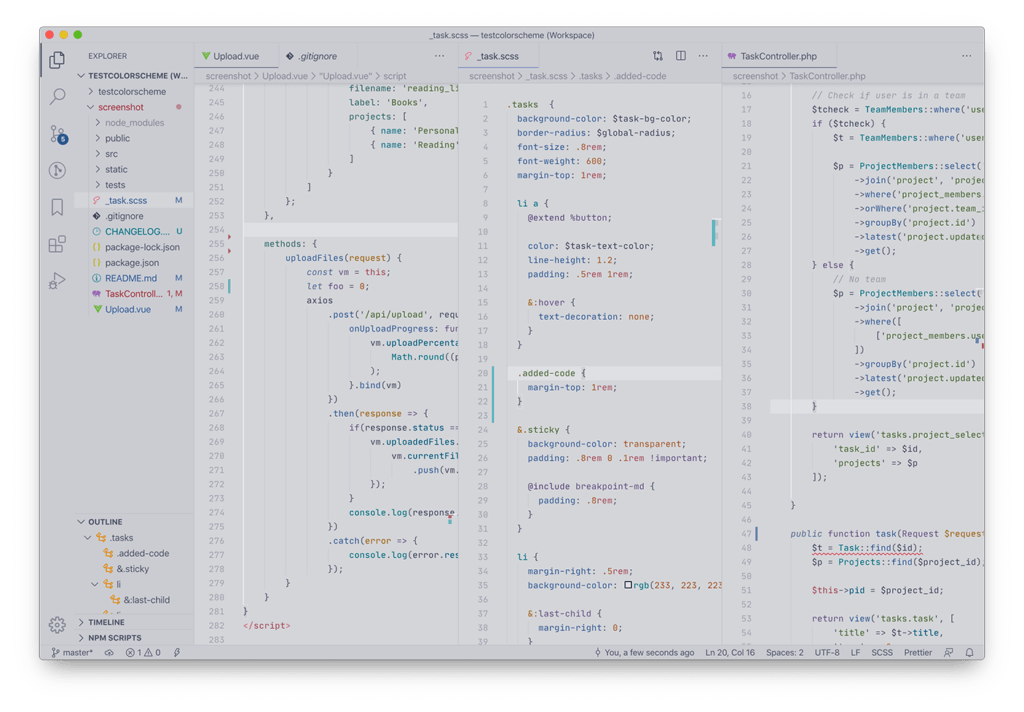
Tokyo Night is a clean, cool, and soothing dark theme with calm colors. It celebrates the lights of Downtown Tokyo at night and is available in both light and dark versions. Its perfect blend and combination of colors help you meditate as you code.
GitHub Theme
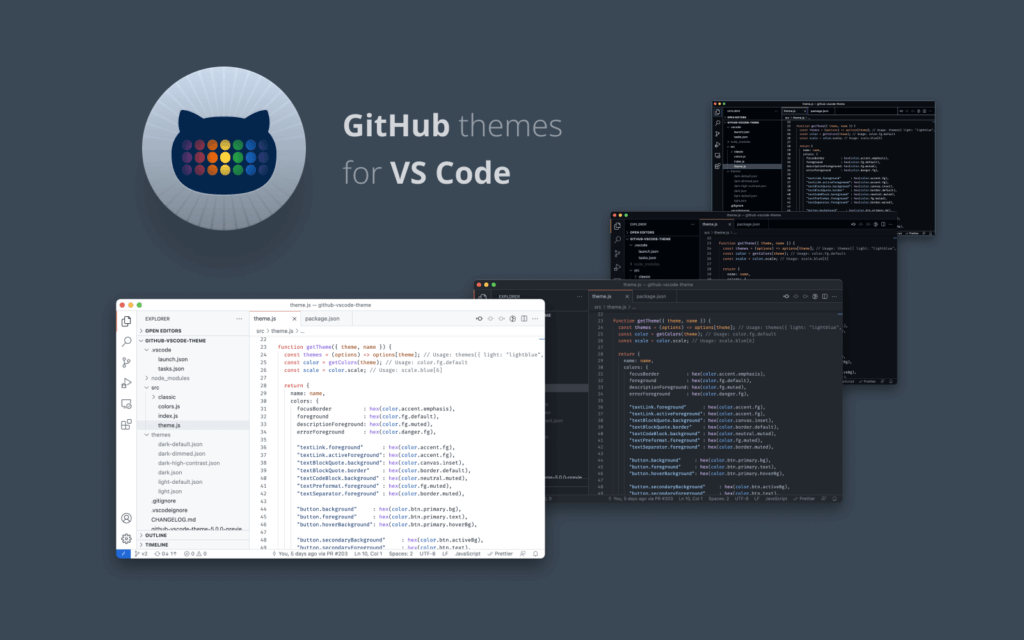
GitHub theme brings the GitHub experience to VS Code. It’s similar to the official GitHub.com themes and is popular with developers who prefer GitHub’s classic themes. Although offered as a preview, it’s available in the dark, dark default, dark dimmed, light, and light default versions.
Winter is Coming

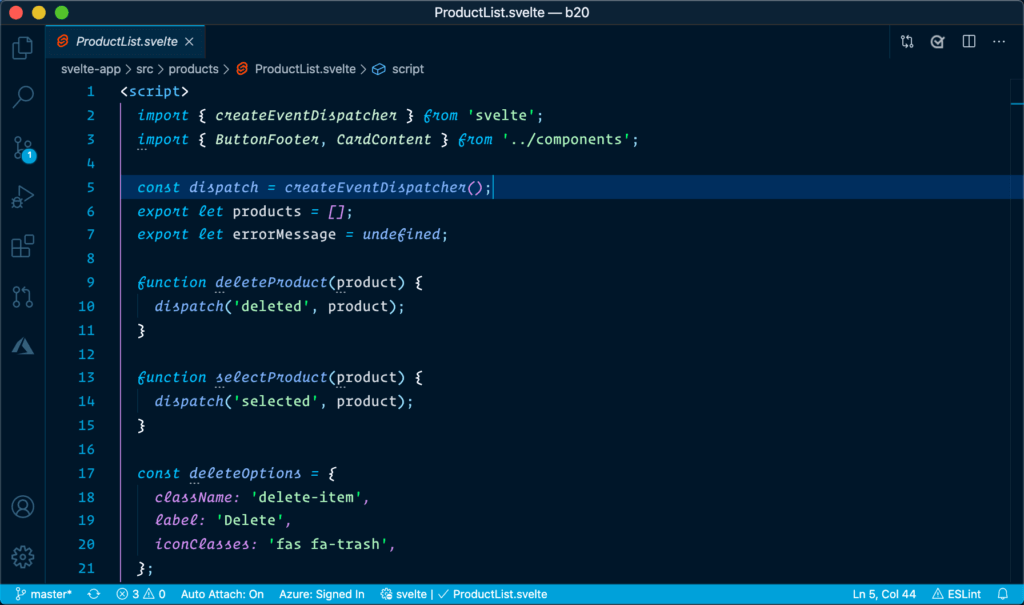
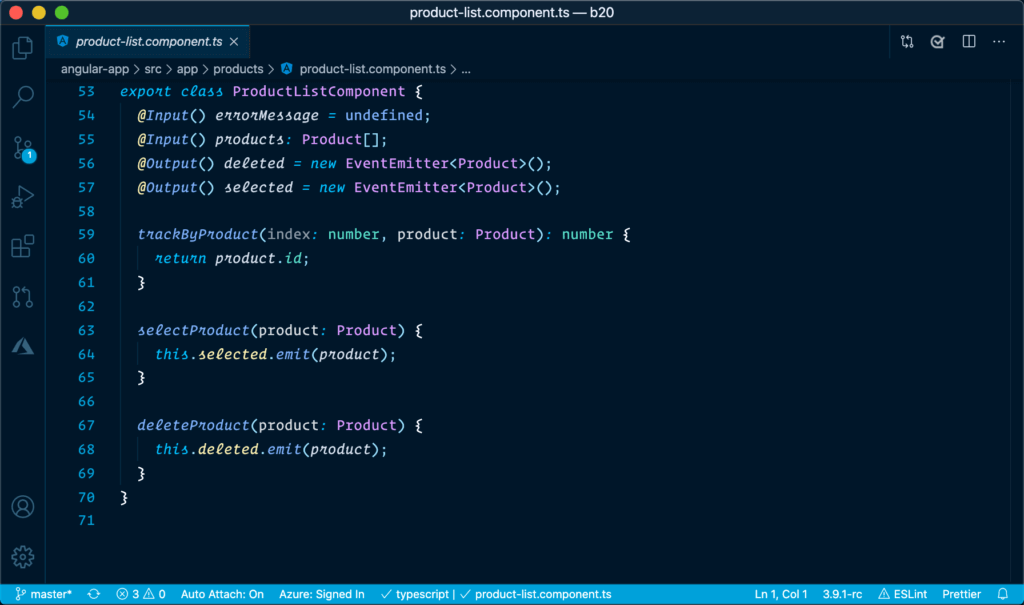
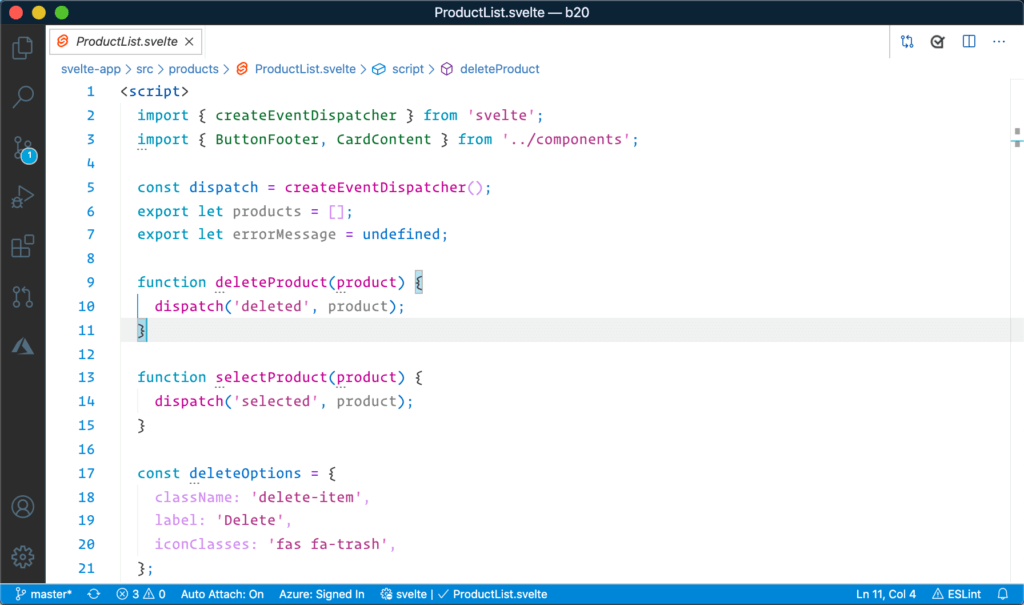
If you’re a top fan of Game of Thrones, you’ve heard this phrase several times throughout the show. It was created by John papa and comes in different versions, including dark blue, dark black, and light. It encompasses a balance in its color schemes, making it perfect for coding during the day and at night.
Firefox Theme
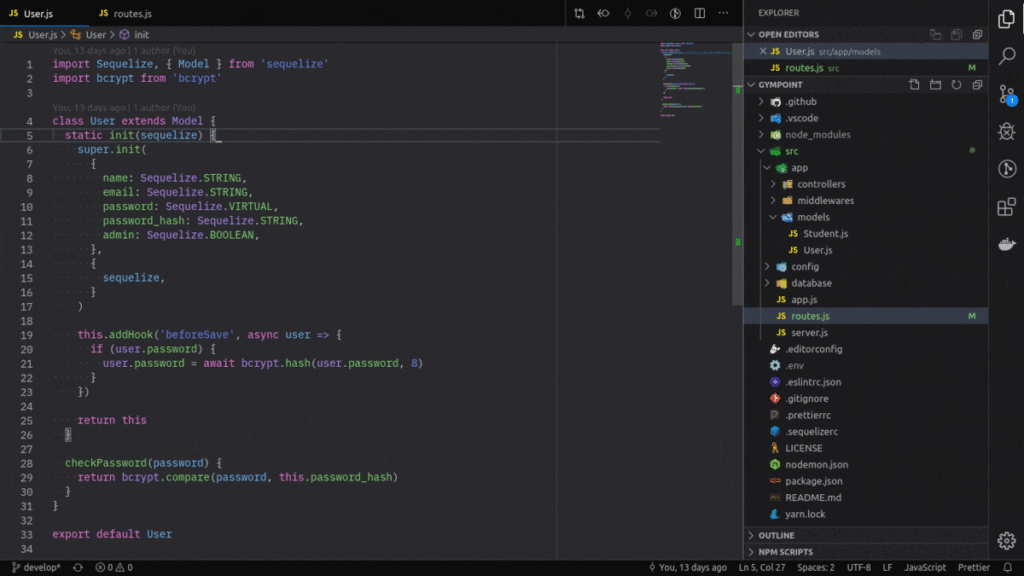
The Firefox theme is based on Mozilla Firefox’s developer tools. Its perfect balance of cool colors gives it an elegant look with neon-lighted icons. For easy switching between tabs, it gives a highlighted underline on opened tabs to ensure a quick transition. It’s available in dark and light versions.
Sublime Material Theme
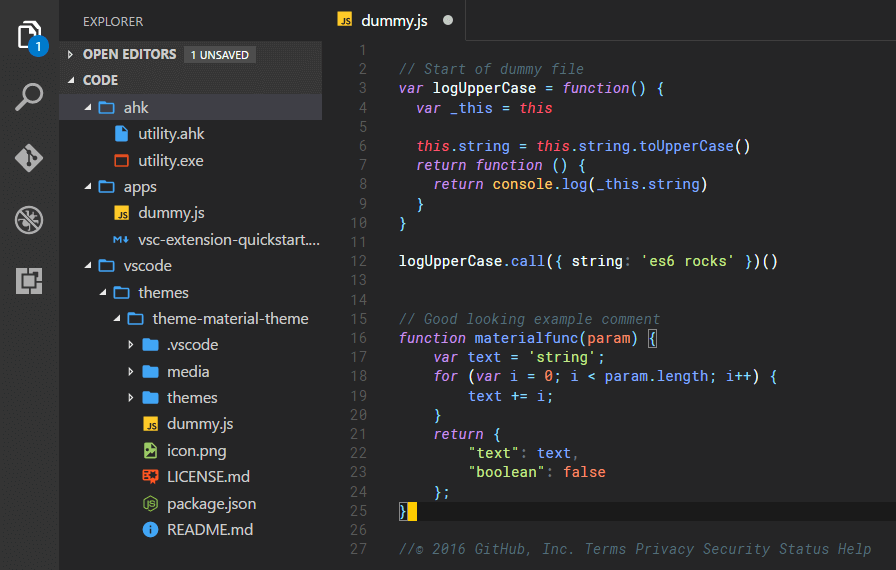
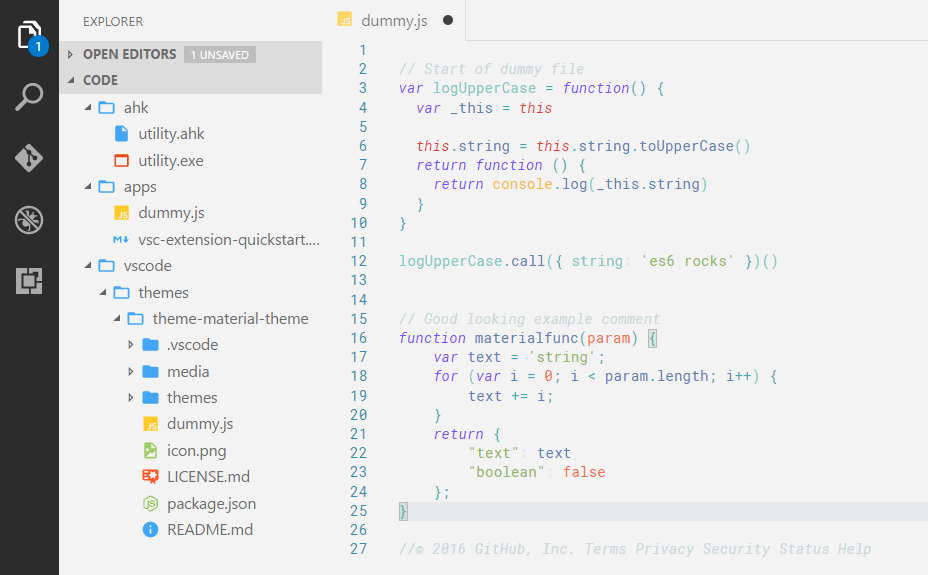
Developed by Mattia Astorino, the Sublime Material theme is a great way to align the theme’s style with the default VS Code that can’t be changed. It’s a popular trending IDE available and has gained tremendous love from many developers. It’s available in dark and light versions to help you transition from coding during the day to the night.
Download Sublime Material Theme
Nu Disco

Nu Disco was built by Danny Banks and is powered by Style Dictionary. Its syntax colors are placed beautifully with contrasting colors to make your coding experience easy. Available in dark and light versions, it’s perfectly designed to be easy to use in bright and low-light environments.
Wrapping up
VS Code is a great code editor that supports hundreds of languages and advanced features, including syntax highlighting, auto-indentation, and snippets. It’s suitable for modern web development and has an interactive debugger to view call stacks and execute variables.
As we begin 2024, trying out either of the above Visual Studio Code themes is imperative to enhance your coding process. While the above themes make your IDE look colorful and help your eyes sting less, they will not make you a better programmer. You need to learn and practice more to gain knowledge and experience in coding.
Stay updated and learn how to optimize your software development with Tabnine AI
Tabnine is the AI coding assistant that accelerates and simplifies software development while keeping your code private, secure, and compliant.
Try Tabnine Pro free for 90 days!
[cta_btn url=”https://www.tabnine.com/pricing/landing” label=”Start a free trial”]
Top 11 GoLand IDE plugins for 2022
Posted on November 8th, 2021
Adjusting to a new IDE can be a jarring experience, even if you’re familiar with the programming language it was designed to support. It might not work like other code editing tools you’re familiar with, or it might be missing some features you’re used to having.
This can be the case with professional Go developers adopting IntelliJ GoLand as their primary IDE. Fortunately, IntelliJ IDEs offer a quick way to bridge the usability and productivity gap – installing some plugins. Plugins can provide familiarity, add essential features, improve productivity, and support additional languages or file formats.
When I start using a new IDE, I don’t look for plugins. Why? Because I rarely know they exist. If you’re anything like me, this list will give you a good starting point to find the GoLand plugins to improve your coding experience.
What is GoLand?
GoLand by IntelliJ is a cross-platform IDE built specifically for GoLang developers. There are plenty of other IDEs that you can use to develop in Go, so why choose GoLand? Some IDEs offer Go support using plugins and extensions, which means that they have shortcomings to the specific needs of a Go developer. Other options, such as Sublime, Atom, or Vim, don’t pack the power a fully integrated development environment can have.
IntelliJ is a company with a robust portfolio of excellent IDEs. When using GoLand, you can feel confident it is backed by years of experience by one of the best in the business. IntelliJ’s experience does come with a price tag, but it is well within the scope of affordable, starting at $89 for the first year for a personal license. And best of all, you can try it for free.
GoLand has a long list of built-in features. Most of those features are common to IDEs, but integrations with Docker, Git, and a Terminal are some of the handier features you might not get elsewhere without plugins. GoLand also has an extensive Plugin Ecosystem that can help tailor your experience for your specific needs.
The field of software development is constantly evolving, with the landscape undergoing changes. It’s important to stay up-to-date and gain the necessary knowledge to effectively optimize your software engineering with AI in 2023. Get more knowledge here.
How to install plugins in GoLand
Installing a plugin via the integrated marketplace is a straightforward matter.
- Press alt + ctrl + s to brings up the settings window or navigate to GoLand | Preferences | Plugins if you’re using macOS
- Navigate to Plugins and use the search bar to find the plugin you wish to install
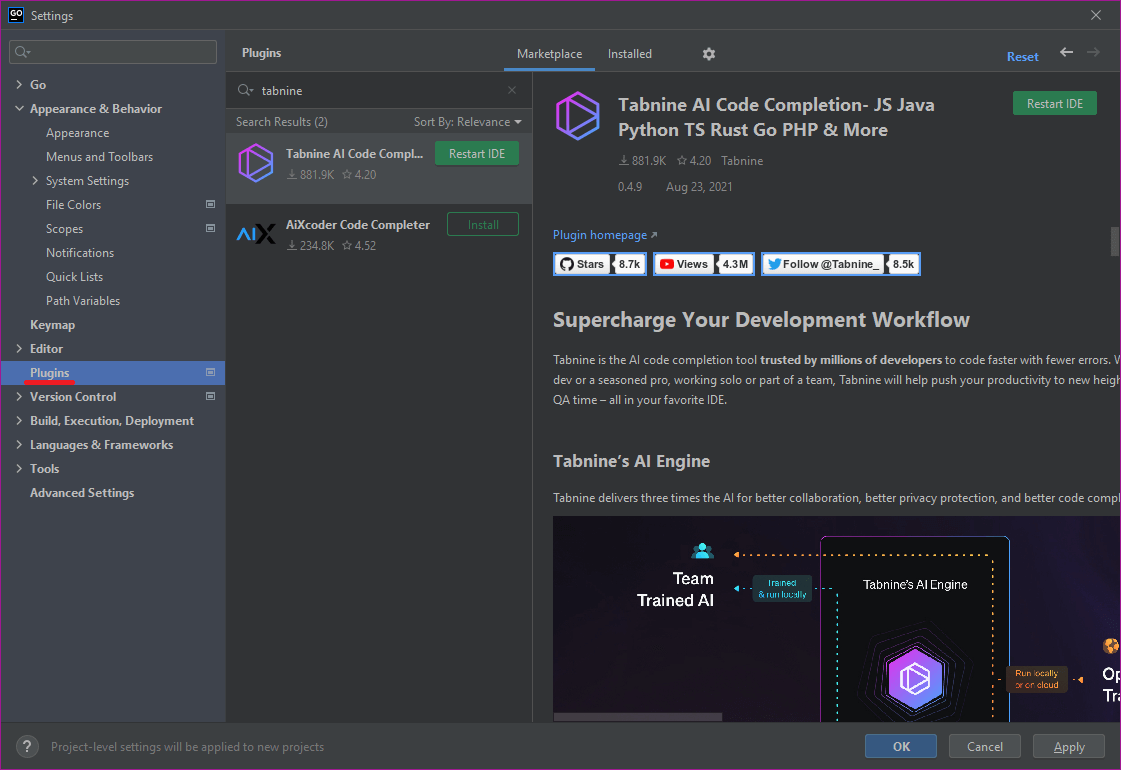
- From here, it is a matter of clicking install, and GoLand will take care of the rest. You’ll likely need to restart your IDE for the plugin to take effect. But don’t worry, Goland will prompt you to do so.
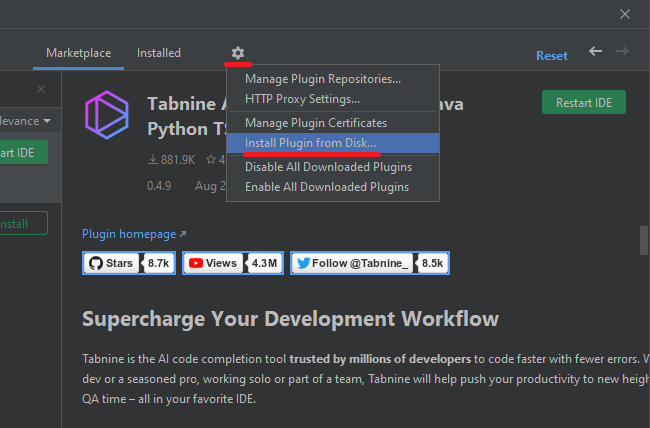
You can also install a plugin from a file. In the same window, click the gear icon and then Install Plugin from Disk.
Top 11 for JetBrains’ GoLand IDE in 2022
String Manipulation
Have you ever needed to manipulate some text while writing code and lamented having to do many operations manually? String Manipulation fixes this with a long list of ways in which you can modify strings of text. You can randomize lines of text, change case, and add or remove escape characters.
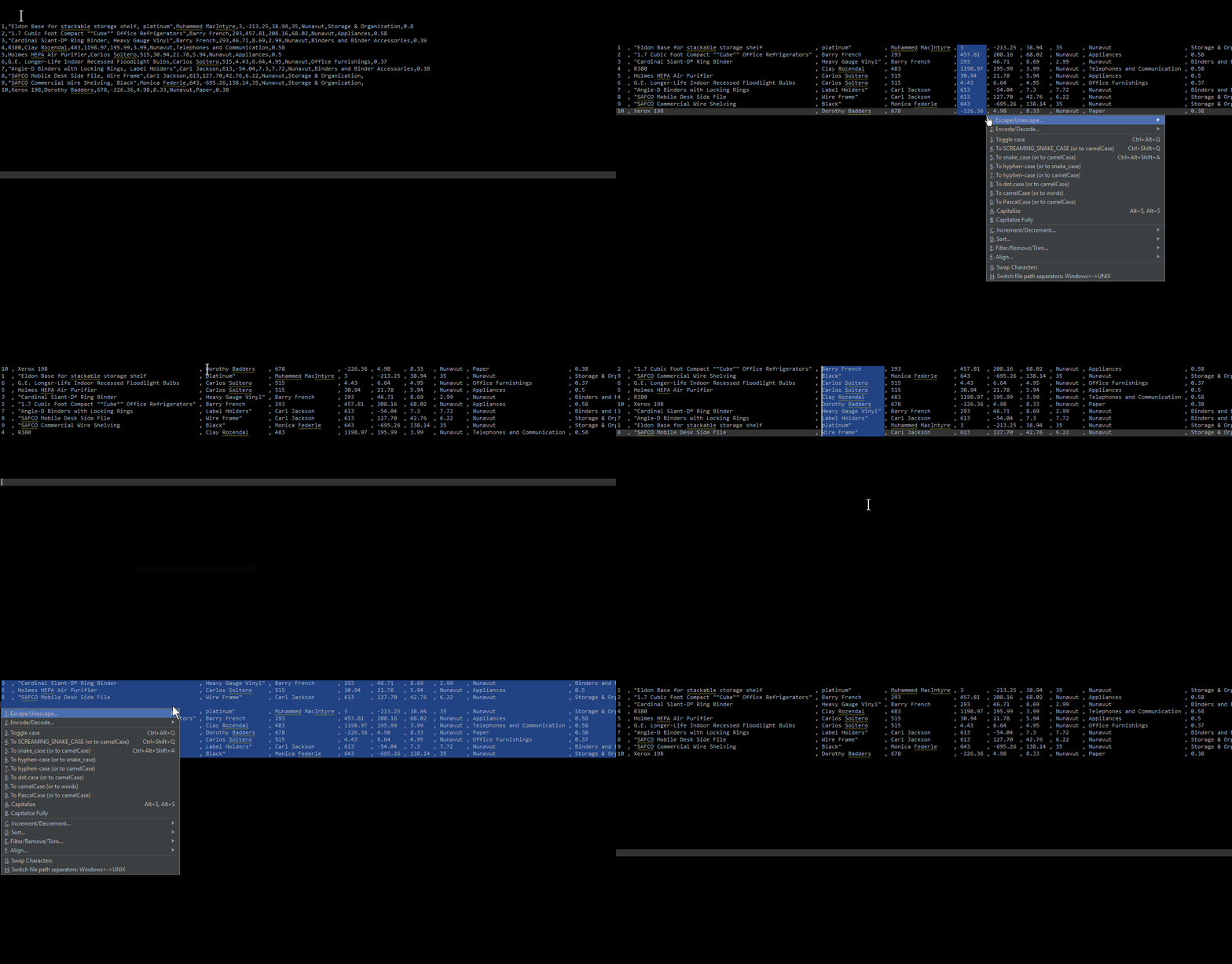
User Review: “The plugin that I always immediately install right after installing any IntelliJ-based IDE.”
Tabnine AI Code Completion
Good code completion can save you a lot of time typing code. Code completion is a common feature of most IDEs, but not all code completion is created equal. Tabnine uses AI to predict what you might want to type next based on context and not simply list every possible option based on what you already wrote.

User Review: “I’ve been using Tabnine with RubyMine and it’s been great! It’s been saving me a lot of time and it’s become an integral part of my workflow to the point where it’s hard to imagine going back! Their customer support is also top notch, I had some difficulties getting setup and they straightened things out very quickly as well as moving fast to correct a billing issue once I alerted them to it.”
GitToolBox
If you use Git, and you probably should be using Git, this plugin will add a few features to make your life easier. Showing inline blame, commit number, and dates are among the most valuable features of GitToolBox.
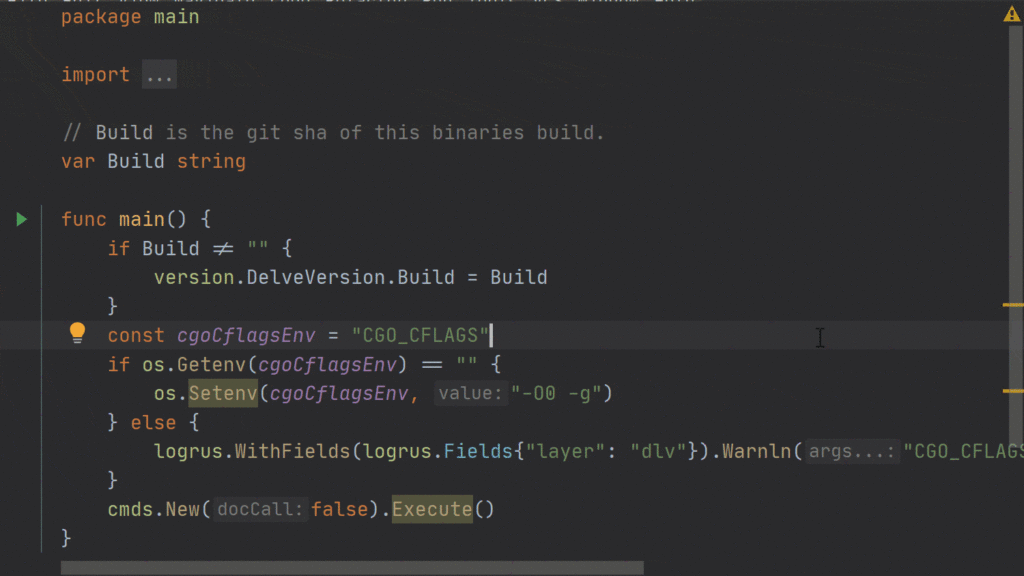
User Review: “A great and useful plugin for every project that utilizes git. An issue got fixed in only 1 day by the creator!”
Protocol Buffers
Protocol Buffers are Google’s implementation of a lightweight serialized data structure. It works similarly to XML and has support for multiple languages, including Go. If you intend to use Protocol Buffers, this extension will offer the support you need.
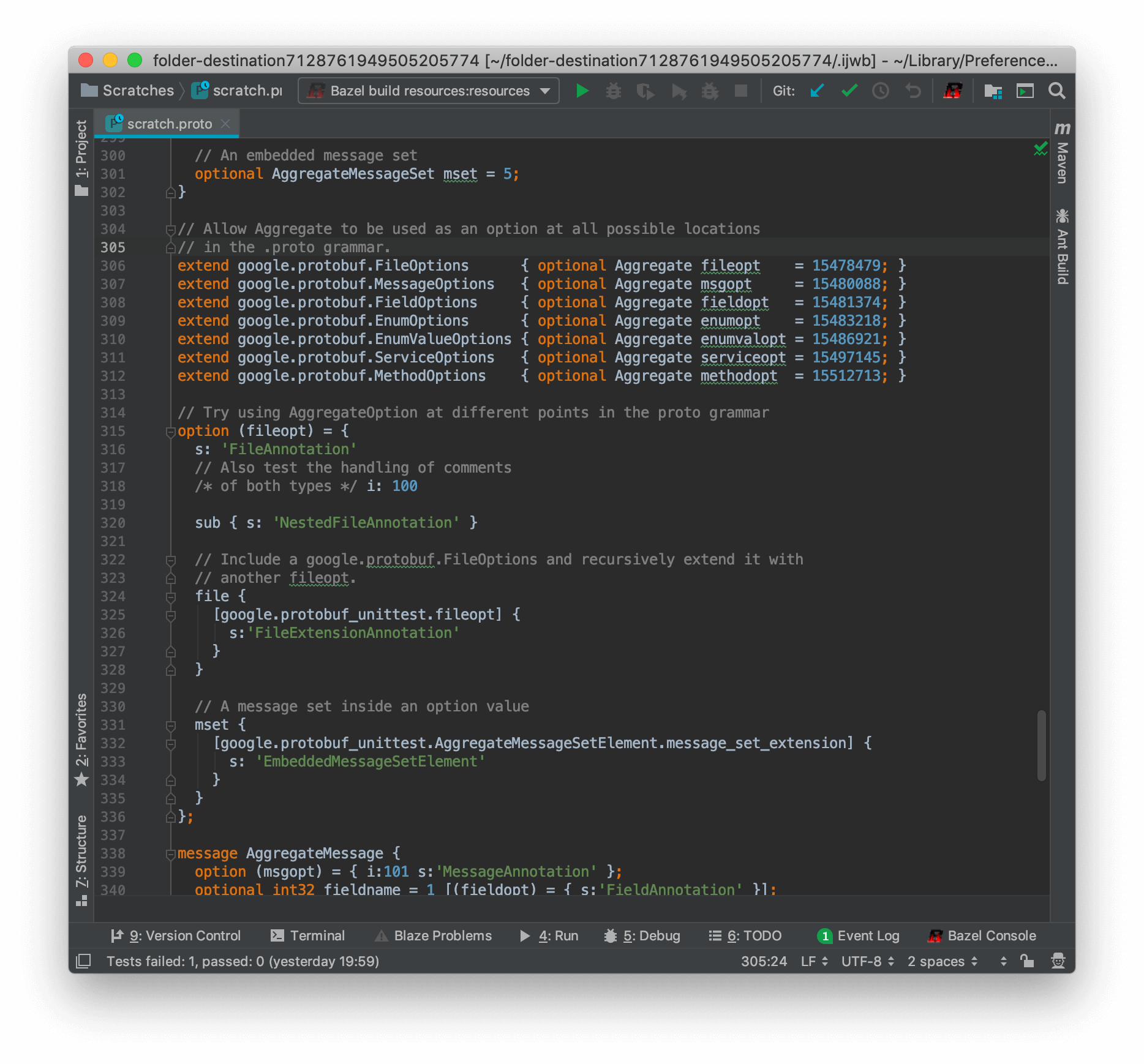
One user notes you should make sure this is the only protocol buffer you have installed, otherwise it may cause issues with GoLand loading.
Key Promoter X
When you’re getting familiarized with a new IDE, you don’t know all the shortcuts. Sometimes you even look them up but promptly forget because you haven’t used them enough to remember. Key Prompter X helps you familiarize yourself with keyboard shortcuts by sending a pop-up notification every time you use a mouse menu when you could have used a keyboard shortcut.
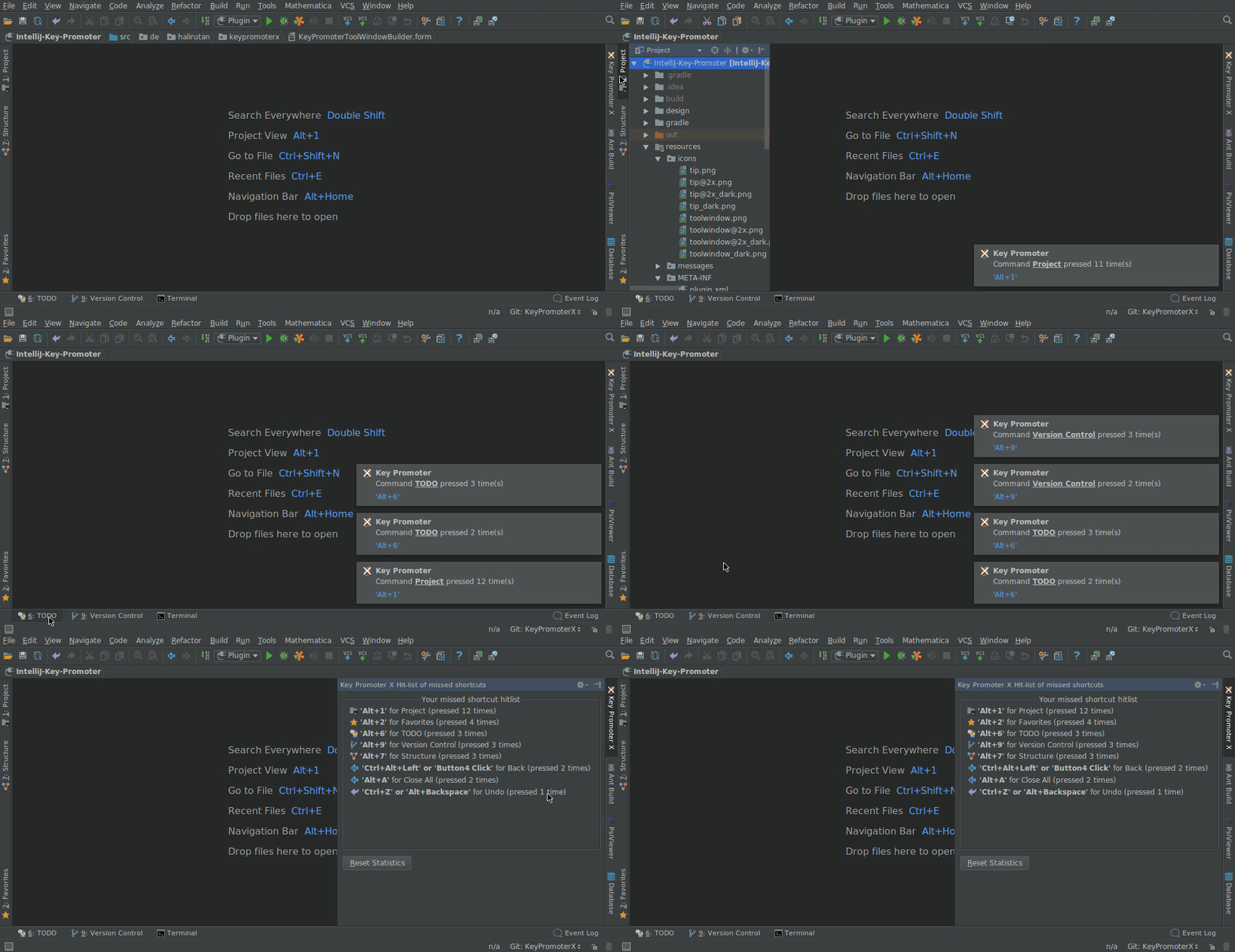
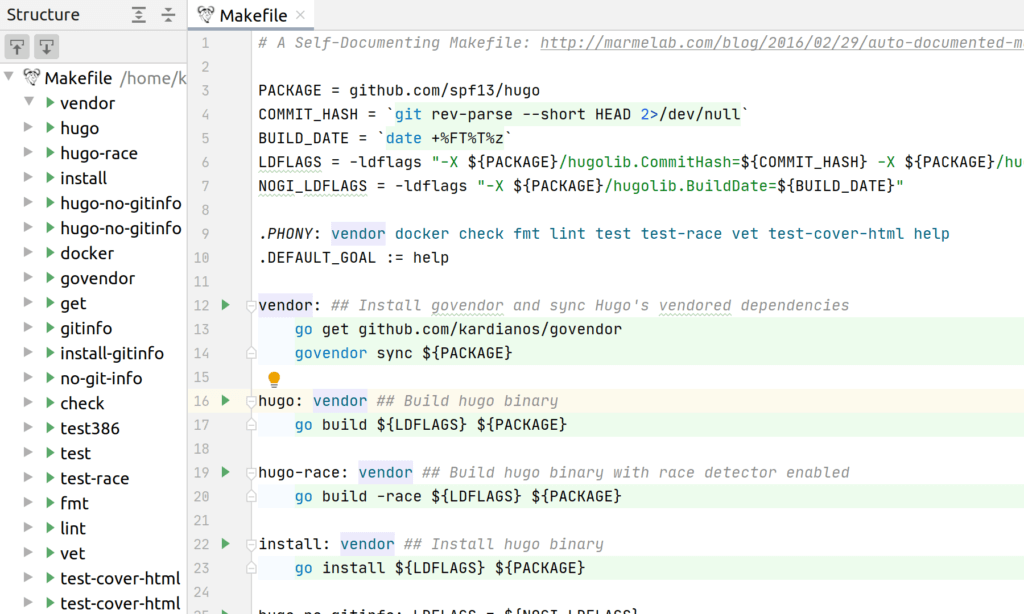
Makefile Language
Makefile support is essential, especially when working with large makefiles. This plugin provides auto-completion, syntax highlighting, and a make tool window—everything you need to handle Makefiles from inside your IDE.
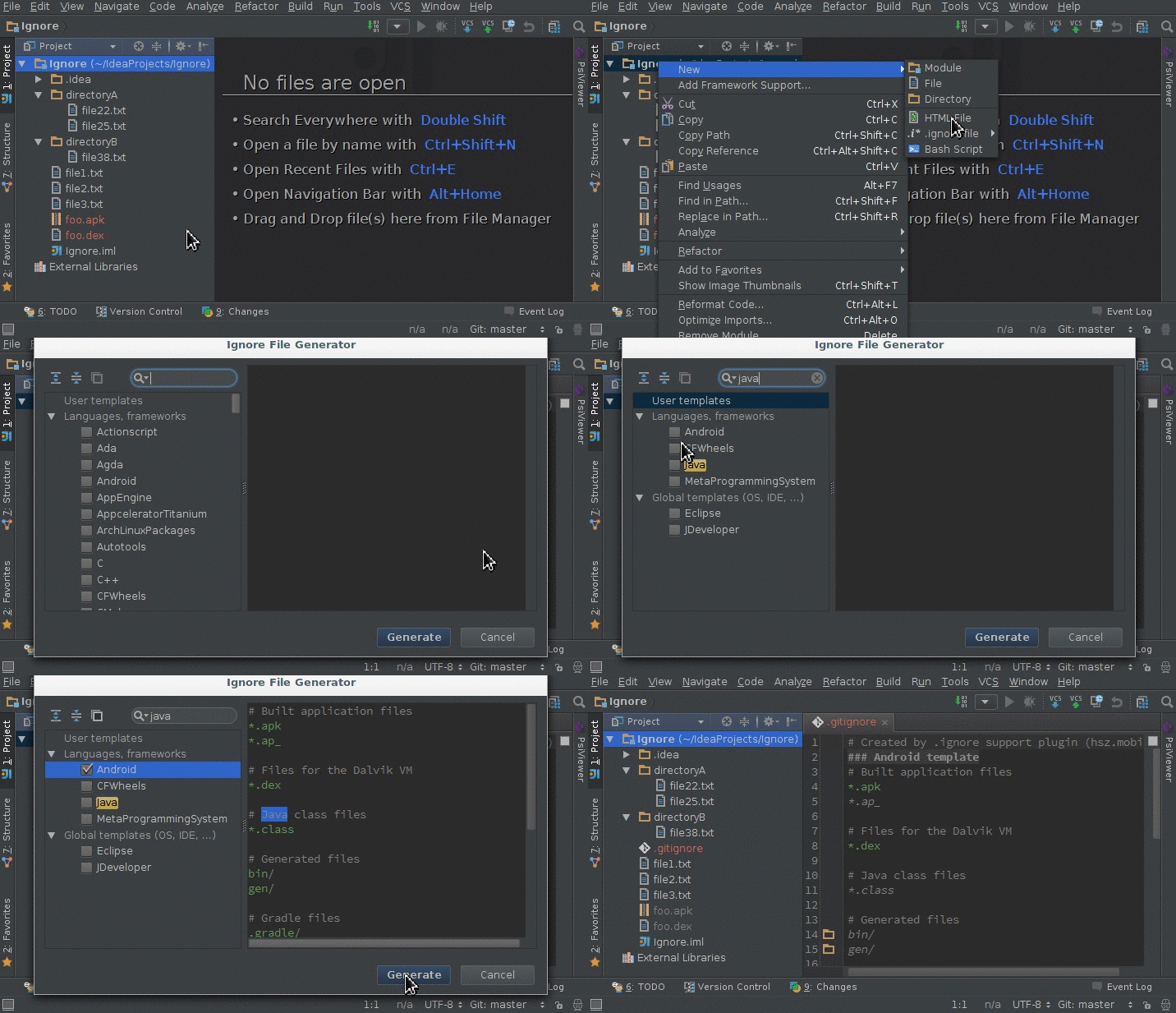
.ignore
A handy .ignore file generator and editor. If you’re using Git you’re likely going to need to ignore some files from being checked in. This plugin lets you edit the ignore file from within GoLand.
CSV
CSV is a commonly used file extension. It’s not a very good file extension, but sometimes you get data in a CSV, and you need to handle it. The CSV plugin lets you do exactly that.
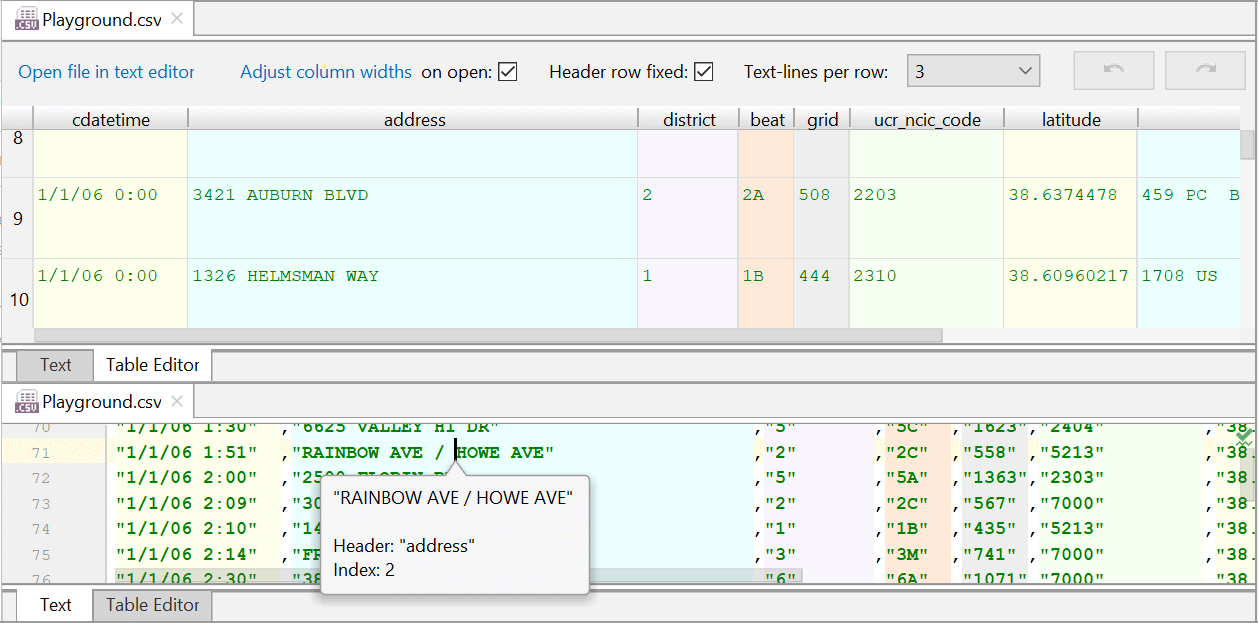
User Review: “Excellent and useful plugin for all who need to work with larger csv or tsv tables in their IDE.”
Rainbow Brackets
Nested brackets can be a nightmare to decipher, especially when they’re bunched together or very far apart. Rainbow brackets gives each pair of brackets a different color, which makes it much easier to see at a glance if every bracket is closed, and which level you’re currently in.
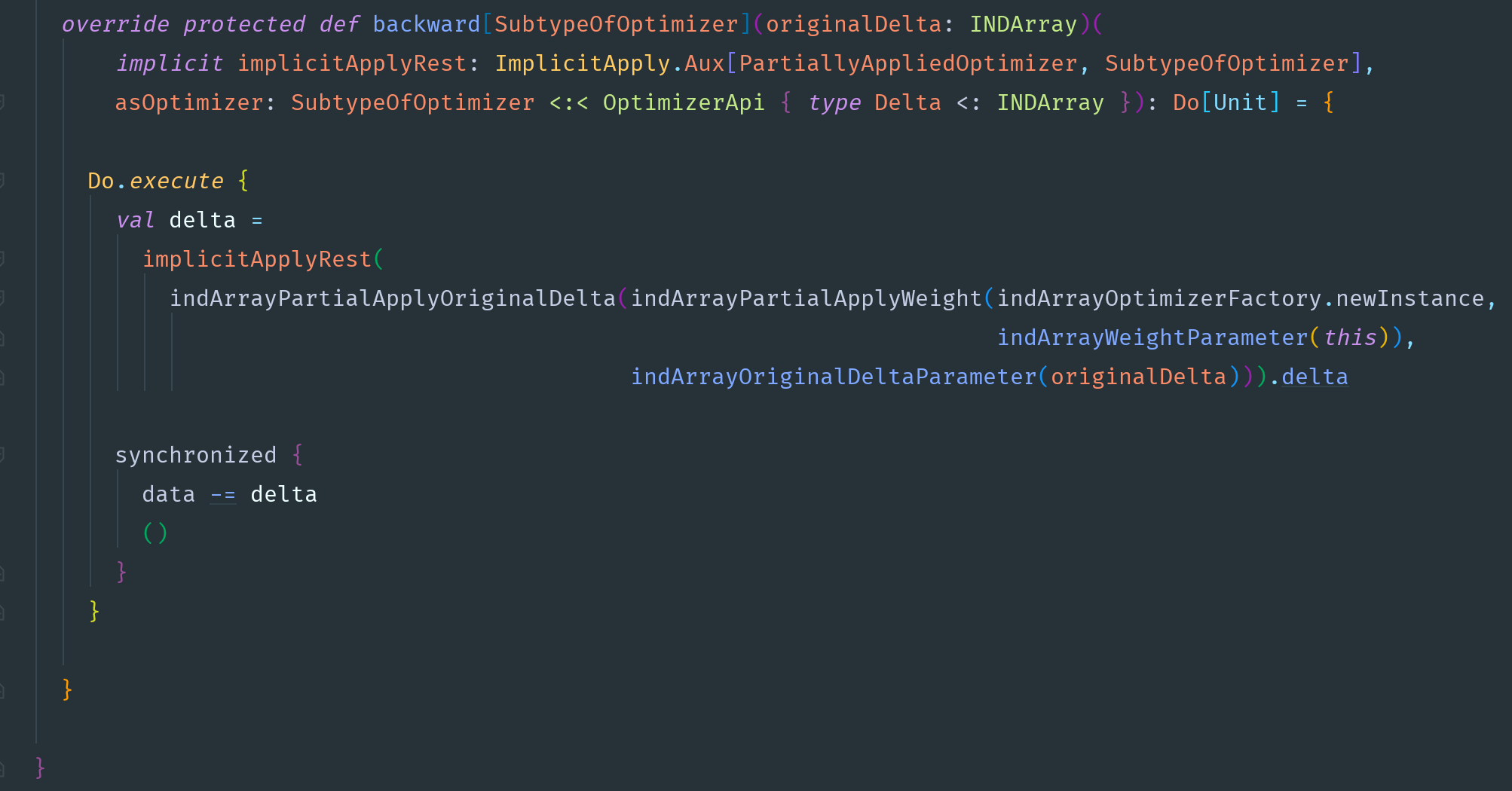
User Review: “I’ve used this plugin for years and really should have left a review a long time ago, so sorry about that. It’s an invaluable part of my toolkit and makes my job a lot easier, so thank you. It’s always been stable, and the configuration options are great.
Gopher
It’s a progress bar. It’s super cute. Probably the most important plugin on this list if you’re a fan of all things cute.

User Review: “The coolest plugin ever.”
Can’t argue there.
TinyGo
TinyGo is a Go compiler for microprocessors. Programs you write with TinyGo can run on over 60 different microcontroller boards such as the BBC micro:bit and the Arduino Uno.
TinyGo can also produce WebAssembly (WASM) code. If you need to compile super-compact apps for web browsers, server, and edge computing environments that support the WebAssembly System Interface (WASI) family of interfaces, you should check TinyGo out.

Some plugins are almost critical to install, while others are nice to have or help personalize your experience. You’ll do well to start with String Manipulation, Tabnine, and of course, Gopher as your list of essential plugins. From there, you could add support for file types you often use and possibly extend built-in Git support. And don’t forget to leave a review for the plugins you like; the developers will surely appreciate it!